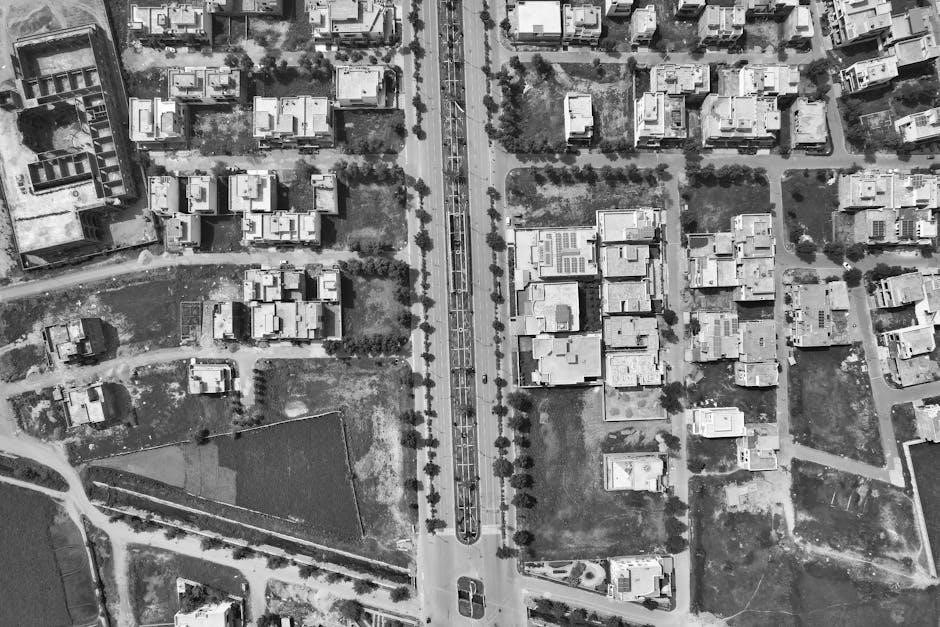
Understanding Geospatial PDFs
Geospatial PDFs embed location data‚ retaining coordinates when imported into Adobe Acrobat․ This allows interactive viewing‚ location marking‚ and data analysis within the PDF document․
These PDFs support both vector and raster data‚ enabling measurements‚ coordinate system changes‚ and integration with web mapping services for enhanced geographic workflows․
What is a Geospatial PDF?
Geospatial PDFs are standard PDF documents enhanced with geographic information‚ essentially embedding location data within the file․ Unlike typical PDFs‚ these retain geospatial coordinates when imported into Adobe Acrobat‚ enabling a range of location-aware functionalities․ This means the PDF isn’t just a visual representation‚ but a geographically referenced document․
The core concept revolves around georeferencing – assigning real-world coordinates to elements within the PDF․ This allows users to interact with the document to find and mark specific locations‚ measure distances‚ perimeters‚ and areas accurately‚ and even copy coordinates for use in other Geographic Information Systems (GIS) or web mapping services․
Geospatial data within these PDFs can be either vector-based‚ raster-based‚ or a combination of both‚ offering flexibility for various mapping and analytical applications․ They are created through georegistration of maps or scans of geospatial data․
Benefits of Georeferencing PDFs
Georeferencing PDFs unlocks a powerful suite of advantages for professionals working with spatial data․ Primarily‚ it transforms static maps and images into interactive geographic resources․ Users can accurately find and mark location coordinates directly within the PDF‚ eliminating the need for external GIS software for simple location identification․
Furthermore‚ georeferencing enables precise measurement of distance‚ perimeter‚ and area‚ crucial for planning‚ surveying‚ and analysis․ The ability to change coordinate systems and measurement units provides flexibility for diverse project requirements․
Perhaps most importantly‚ georeferenced PDFs facilitate seamless integration with other geospatial tools; coordinates can be easily copied to the clipboard and utilized in web mapping services‚ streamlining workflows and enhancing data interoperability․ This makes them incredibly versatile for field work and data sharing․
Applications of Geospatial PDFs (Mapping‚ GIS)
Geospatial PDFs find broad application across mapping and Geographic Information Systems (GIS) workflows․ They serve as excellent platforms for distributing maps‚ allowing users to interact with geographic data without specialized GIS software․ This is particularly useful for field data collection‚ where users can mark locations and measurements directly on the map․
In GIS‚ georeferenced PDFs can be used as base maps or to supplement existing datasets․ They facilitate quick visualization and analysis of spatial information․ The ability to import GeoTIFF and JPEG 2000 files as layers expands analytical capabilities․
Applications range from urban planning and natural resource management to emergency response and infrastructure maintenance․ They are ideal for sharing map information with stakeholders who may not have GIS expertise‚ promoting wider data accessibility and informed decision-making․
Preparing Your PDF for Georeferencing
Successful georeferencing requires suitable PDFs – typically scanned maps or images – ensuring high quality for accurate results and reliable geospatial data integration․
PDF Requirements (Scanned Maps‚ Images)
For effective georeferencing‚ your PDF should ideally originate from scanned maps or high-resolution images containing inherent geospatial information․ These source documents form the foundation for associating real-world coordinates with the PDF’s visual elements․
The PDF doesn’t necessarily need to be created as a geospatial PDF initially; standard PDFs can be georeferenced․ However‚ the clarity and quality of the original scan significantly impact the accuracy of the process․
Raster-based images‚ like TIFF or JPEG‚ are commonly used‚ but vector PDFs can also be georeferenced․ Ensure the image is geometrically stable – free from distortions – before importing it into Adobe Acrobat for georeferencing․ A clear‚ undistorted source document is paramount for precise results․
Ensuring PDF Quality for Accurate Results
Achieving accurate georeferencing hinges on the quality of your PDF․ High resolution is crucial; a minimum of 300 DPI is recommended for scanned maps to capture sufficient detail for precise control point placement․
Distortions‚ such as skewing or warping during scanning‚ must be minimized or corrected beforehand․ Clean‚ sharp images yield better results than blurry or faded ones․

Consider the original map’s scale and ensure it’s accurately represented in the digital PDF․ Any pre-existing annotations or markings should be clear and not obscure key features used for control points․ A well-prepared PDF minimizes errors and streamlines the georeferencing workflow‚ leading to more reliable geospatial data․
Georeferencing Methods in Adobe Acrobat
Adobe Acrobat Pro facilitates georeferencing through its dedicated tool‚ allowing users to import GeoTIFF and JPEG 2000 files as new documents or layers․
Using the Georeference Tool in Acrobat Pro
Acrobat Pro’s Georeference tool is central to assigning spatial coordinates to your PDF․ Accessing this tool initiates a process where you define the PDF’s relationship to a real-world location․
The core functionality revolves around establishing control points – precisely identified locations on your PDF that correspond to known coordinates․ These points link the image to a specific geographic location․
The tool allows importing raster images like GeoTIFFs and JPEG 2000s‚ integrating them as new documents or layers․ Once imported‚ you can interact with the geospatial data‚ measuring distances‚ perimeters‚ and areas directly within the PDF environment․
Furthermore‚ you can modify coordinate systems and measurement units‚ tailoring the PDF to your project’s specific needs․ The ability to copy coordinates to the clipboard enables seamless integration with web mapping services․
Importing GeoTIFF and JPEG 2000 Files
GeoTIFF and JPEG 2000 files are raster image formats specifically designed to carry geospatial information․ Acrobat Pro readily imports these‚ treating them as either new documents or additional layers within an existing PDF․
Importing these files automatically brings their embedded georeferencing data into Acrobat․ This eliminates the need for manual georeferencing in many cases‚ streamlining the process significantly․ The software recognizes and utilizes the coordinate system already defined within the image file․
Once imported‚ you can leverage Acrobat’s geospatial tools to measure distances‚ analyze areas‚ and pinpoint locations․ You also retain the flexibility to modify the coordinate system if needed‚ adapting the data to different project requirements․
These formats are ideal for integrating high-resolution imagery and geospatial datasets directly into your PDF workflows․
The Georeferencing Process: Step-by-Step
Georeferencing involves adding control points‚ defining the correct coordinate system‚ and selecting a transformation method to accurately align the PDF with real-world locations․
Adding Control Points
Control points are crucial for establishing the georeferencing transformation․ These points link identifiable locations within your PDF to known coordinates in a defined coordinate system․
Carefully select well-defined‚ easily recognizable features on both the PDF and the real-world reference data․ Accuracy is paramount; the more precise your control point placement‚ the better the georeferencing result․
A minimum of three control points are required‚ but using more – particularly those distributed across the entire PDF extent – significantly improves accuracy․ Acrobat Pro allows you to add‚ edit‚ and delete these points as needed‚ refining the alignment until the PDF accurately reflects its geographic position․
Remember to verify each point’s placement to minimize errors during the transformation process․
Defining Coordinate Systems
Accurately defining the coordinate system is fundamental to successful georeferencing․ You must specify both the geographic and the projected coordinate system used for your reference data․
Geographic coordinate systems‚ like WGS 84‚ use latitude and longitude․ Projected coordinate systems‚ such as UTM‚ represent the Earth’s surface on a flat plane‚ minimizing distortion for specific regions․
Acrobat Pro provides a comprehensive list of coordinate systems to choose from․ Selecting the correct system ensures accurate measurements and proper alignment with other geospatial datasets․
Mismatches between the PDF’s inherent coordinate system (if any) and the defined system can lead to significant errors․ Therefore‚ careful consideration and verification are essential during this step․
Transformation Methods (Affine‚ Projective)
Georeferencing relies on transformation methods to warp the PDF and align it with real-world coordinates․ Affine transformation is a simpler method‚ suitable for flat maps with minimal distortion‚ using six parameters to adjust for scale‚ rotation‚ and skew․
Projective transformation‚ more complex‚ utilizes eight parameters and is ideal for correcting perspective distortions found in images taken from oblique angles․ It provides higher accuracy when dealing with non-planar surfaces․
Acrobat Pro automatically selects a suitable method‚ but understanding the differences allows for informed adjustments․ The choice depends on the source data and desired accuracy․
Higher-order transformations generally yield better results but require more control points and computational power․
Coordinate Systems and Projections
Coordinate systems define locations on Earth‚ with geographic systems using latitude/longitude‚ and projected systems using a flat‚ Cartesian grid for accurate measurements․
Choosing the correct system—like WGS 84 or UTM—is crucial for precise georeferencing and spatial analysis․
Understanding Geographic vs․ Projected Coordinate Systems
Geographic coordinate systems utilize a three-dimensional sphere (or ellipsoid) to define locations using angles – latitude and longitude․ These are ideal for global datasets but struggle with accurate distance and area calculations due to Earth’s curvature․ Think of them as representing locations ‘on’ the globe․
Projected coordinate systems‚ conversely‚ transform the Earth’s surface onto a flat‚ two-dimensional plane․ This introduces distortion‚ as a sphere cannot be perfectly flattened‚ but allows for precise measurements of distance‚ area‚ and direction․ Different projections minimize distortion in specific regions or for specific properties․
When georeferencing a PDF‚ understanding this distinction is vital․ Selecting the appropriate system—geographic for broad overviews or projected for localized accuracy—directly impacts the reliability of your spatial data and subsequent analysis․
Common Coordinate Systems (WGS 84‚ UTM)
WGS 84 (World Geodetic System 1984) is a globally used geographic coordinate system‚ serving as the foundation for GPS and many web mapping services․ It’s expressed in latitude and longitude‚ making it excellent for datasets spanning large areas․ When georeferencing a PDF intended for online use‚ WGS 84 is often the preferred choice for compatibility․
UTM (Universal Transverse Mercator) is a projected coordinate system dividing the world into 60 zones‚ each 6 degrees of longitude wide․ It provides accurate measurements within each zone‚ using meters as units․ For localized PDF georeferencing requiring precise distance or area calculations‚ UTM is highly suitable․
Choosing between these depends on your project’s scope and accuracy needs․ Consider the PDF’s intended use and the geographic extent of the data․
Choosing the Right Coordinate System for Your Project
Selecting the appropriate coordinate system is crucial when georeferencing a PDF․ Consider the data’s intended use and geographic extent․ If the PDF will be used with web mapping services like Google Maps‚ WGS 84 is generally the best choice for seamless integration․
For projects requiring accurate measurements within a specific region‚ UTM offers superior precision․ Determine the correct UTM zone based on the PDF’s central longitude․ If your PDF represents a large area crossing multiple UTM zones‚ a geographic coordinate system like WGS 84 might be more practical․
Incorrect selection can lead to distortions and inaccurate analysis․ Always verify the coordinate system of any source data used during the PDF georeferencing process․
Measuring and Analyzing Geospatial PDFs
Georeferenced PDFs enable precise measurements of distance‚ perimeter‚ and area․ Location coordinates can be found‚ marked‚ and copied for use in web mapping․
Measuring Distance‚ Perimeter‚ and Area
Geospatial PDFs unlock powerful measurement capabilities directly within the document․ Once georeferenced‚ you can accurately determine distance between points‚ calculate the perimeter of shapes‚ and compute the area of polygons – all displayed in geographic or projected coordinates․
Acrobat’s tools facilitate these measurements with ease‚ providing dynamic updates as you interact with the map․ This functionality is invaluable for various applications‚ including site planning‚ resource management‚ and preliminary surveying․ Measurements can be customized to display units appropriate for your project‚ such as meters‚ feet‚ or miles․
The precision of these calculations relies on the accuracy of the georeferencing process and the coordinate system used․ Properly georeferenced PDFs offer a convenient and efficient way to extract spatial information without needing dedicated GIS software․
Finding and Marking Location Coordinates
Geospatial PDFs allow you to pinpoint and record precise location data directly on the map․ Adobe Acrobat enables users to find coordinates by simply clicking on any point within the georeferenced document․ These coordinates‚ displayed in the chosen coordinate system‚ can then be easily marked for reference․
This feature is incredibly useful for identifying specific features‚ documenting site conditions‚ or verifying locations against external data sources․ You can also utilize Acrobat to display point positions and lengths in geographic coordinates‚ enhancing spatial awareness․
Furthermore‚ these coordinates can be copied to the clipboard for seamless integration with web mapping services‚ facilitating data sharing and collaboration across platforms․
Copying Coordinates for Use in Web Mapping Services
Geospatial PDFs streamline data exchange with other Geographic Information Systems (GIS) and web mapping platforms․ Adobe Acrobat allows users to easily copy location coordinates identified within the PDF to the clipboard․ This functionality is crucial for integrating geospatial data into online mapping applications like ArcGIS Online or Google Maps․
Once copied‚ these coordinates can be pasted directly into the respective web service‚ instantly displaying the corresponding location on the map․ This eliminates the need for manual data entry and reduces the risk of errors․
This seamless integration facilitates collaboration‚ data sharing‚ and the creation of dynamic web maps based on information extracted from your georeferenced PDF․
Troubleshooting Georeferencing Issues
Common problems include incorrect control point placement‚ coordinate system mismatches‚ and transformation errors․ Careful review and adjustment of these elements are vital for accuracy․
Incorrect Control Point Placement
Precise control point selection is crucial for successful georeferencing․ Errors arise when points aren’t accurately placed on identifiable features in both the PDF and the reference data․ This leads to distortions in the final georeferenced output․
Verify each point carefully‚ ensuring it corresponds to the exact same location on both datasets․ Use a high zoom level for detailed inspection․ If points are misaligned‚ the transformation will be inaccurate‚ resulting in positional errors․ Consider adding more control points‚ especially in areas with significant distortion․
Distribute points evenly across the image‚ avoiding clustering in one area․ A well-distributed set of control points provides a more robust and reliable transformation․ Regularly check the Root Mean Square Error (RMSE) to assess the overall accuracy of the control points․
Coordinate System Mismatches
Incompatible coordinate systems between the PDF and the reference data are a common georeferencing issue․ If the coordinate systems don’t align‚ the PDF won’t be accurately positioned in geographic space‚ leading to significant positional errors․
Always verify that both datasets utilize the same coordinate system (e․g․‚ WGS 84‚ UTM)․ If they differ‚ you must define a transformation to convert the PDF’s coordinates to match the reference data․ Adobe Acrobat allows you to specify the coordinate system during the georeferencing process․
Incorrectly defining the coordinate system can cause substantial distortions․ Double-check the coordinate system’s parameters (datum‚ projection) to ensure accuracy․ Using the wrong system will render measurements and analysis unreliable․
Transformation Errors
Transformation errors occur when the mathematical process of aligning the PDF to real-world coordinates fails to produce accurate results․ This often stems from insufficient or poorly distributed control points‚ or selecting an inappropriate transformation method (Affine vs․ Projective)․
Affine transformations are suitable for flat areas‚ while Projective transformations handle distortions better in areas with significant perspective․ If the error persists‚ increase the number of well-distributed control points‚ ensuring they cover the entire PDF extent․
Review the Root Mean Square Error (RMSE) value in Acrobat; a high RMSE indicates a poor transformation․ Experiment with different transformation methods and control point configurations to minimize this error and achieve accurate georeferencing․
Advanced Techniques
Advanced techniques involve working with multiple layers‚ modifying geospatial data‚ and annotating PDFs for detailed analysis and customized map creation workflows․
Working with Multiple Layers
Geospatial PDFs often benefit from utilizing multiple layers‚ allowing for a more organized and flexible approach to data management; You can import GeoTIFF and JPEG 2000 files as new documents or as entirely new layers within an existing geospatial PDF․
This layering capability is crucial for combining various datasets – perhaps a scanned map as a base layer with additional vector data overlaid on top; Each layer can be independently toggled on or off for clarity‚ and their display order can be adjusted to prioritize specific information․
Effectively managing layers enhances visualization‚ simplifies analysis‚ and facilitates targeted modifications without affecting underlying data․ This is particularly useful when compiling maps from diverse sources‚ ensuring a comprehensive and adaptable geospatial document․
Modifying and Annotating Geospatial Data
Geospatial PDFs aren’t static; Adobe Acrobat allows for significant modification and annotation of the embedded geospatial information․ Once imported‚ measurements‚ point positions‚ and lengths are displayed in geographic coordinates‚ but these can be altered as needed․
You can directly modify existing data or add new annotations – text‚ shapes‚ or callouts – directly onto the georeferenced map․ This is invaluable for highlighting specific features‚ adding notes for collaboration‚ or marking areas of interest․
Furthermore‚ the ability to modify and annotate extends to the coordinate system and measurement units‚ providing flexibility for diverse project requirements․ These changes don’t alter the original data‚ ensuring data integrity while enabling customized workflows․